This guide explains how to move your Activities, Unplanned and Problems into Solutions.
Before you begin
There are a few things to know before moving your content:
- Moving your content into Solutions means you can continue using it in Brain in Hand after Activities, Unplanned and Problems are no longer available.
- We recommend moving your content into Solutions as soon as you’re ready.
- The migration tool moves all eligible content into Solutions in one step. You can’t choose which items to move or how they’re organised.
- If you’d prefer not to use the migration tool, you can create new content in Solutions yourself.
- If you’d simply like to keep a copy of your information, you can use the export tool instead.
Step 1: Open the migration tool
Select the link below to launch the migration tool.
You may be prompted to sign in if you aren’t already.
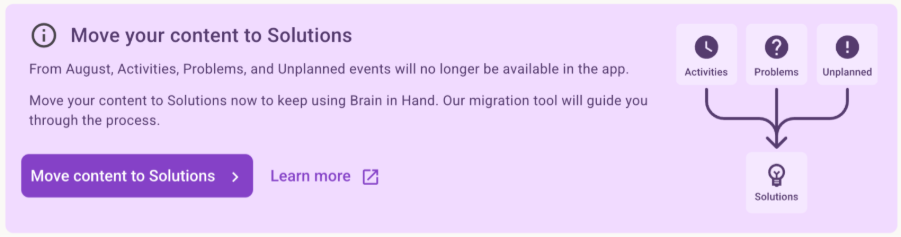
If you’re using the Brain in Hand web app and have content available to move, you’ll also see a Move your content to Solutions card on your homepage.
Step 2: Review your content
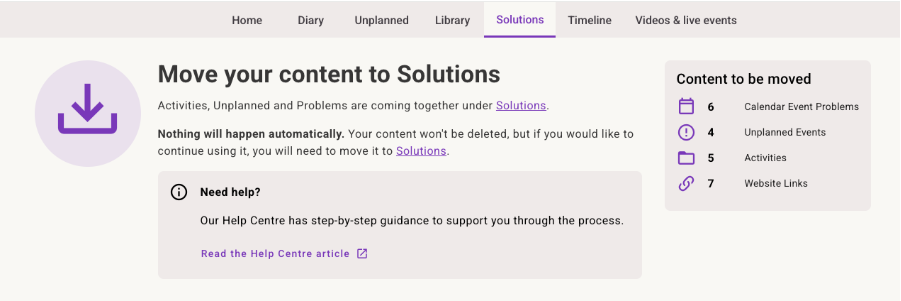
The migration tool shows:
- the content available to move
- examples of how each content type will appear in Solutions after migration.
Take a few moments to review the information before continuing.
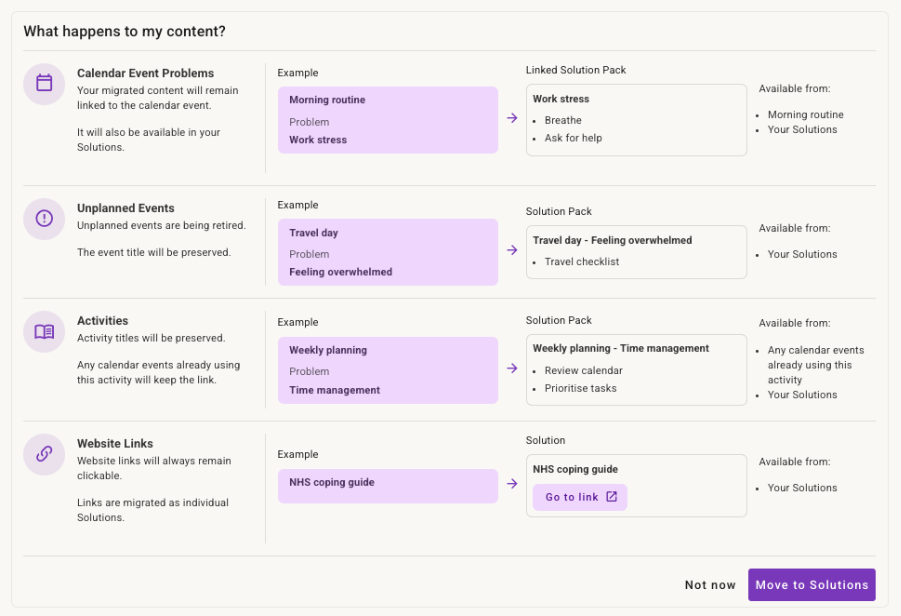
If you’re not ready to move your content, select Not now. You can return and complete the migration at any time while the migration tool is available.
Step 3: Move your content into Solutions
When you’re ready, select Move to Solutions.
Your content will begin moving straight away. You’ll briefly see a loading spinner on the button while the migration is in progress. Most migrations complete in less than a minute.
Step 4: Migration complete
When your migration is complete, you’ll see a confirmation message.

Select Go to Solutions to view your moved content.
After migration
Once you’ve moved your content into Solutions:
- All your moved content will be available in Solutions.
- Unplanned and Library will no longer appear in the main navigation.
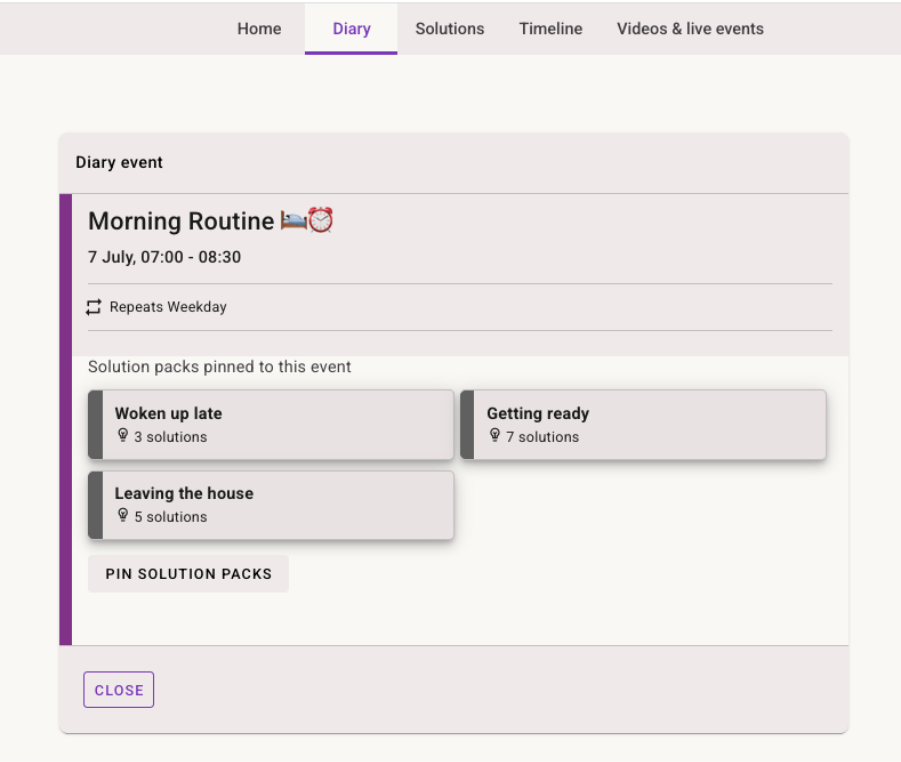
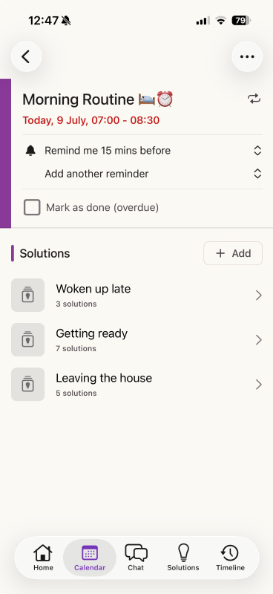
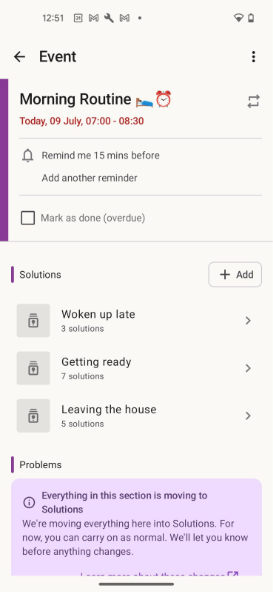
If you had Activities or Problems linked to your calendar events, they’ll remain linked to those events as a Solution Pack. Any Solution Packs already linked to the event will stay exactly as they are. Your calendar events will look similar to the examples below.
Finding your migrated content
In Solutions, select the Packs and By me filters to quickly find your newly created Solution Packs and Solutions.
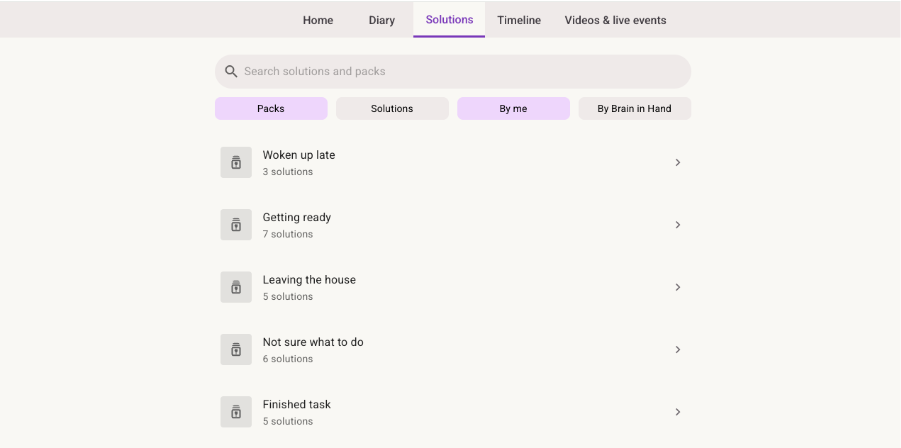
On the mobile app, you can access Solutions from the main navigation bar.
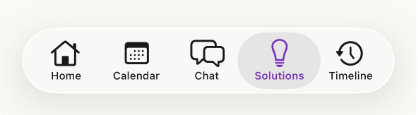
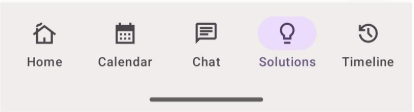
If you don’t see your content straight away, don’t worry. Your migration has completed successfully, but it may take a moment for the app or browser to refresh. Refresh the page or quit and relaunch the mobile app, then check again. Your migrated content won’t be lost.
You only need to migrate once
You only need to move your content to Solutions once.
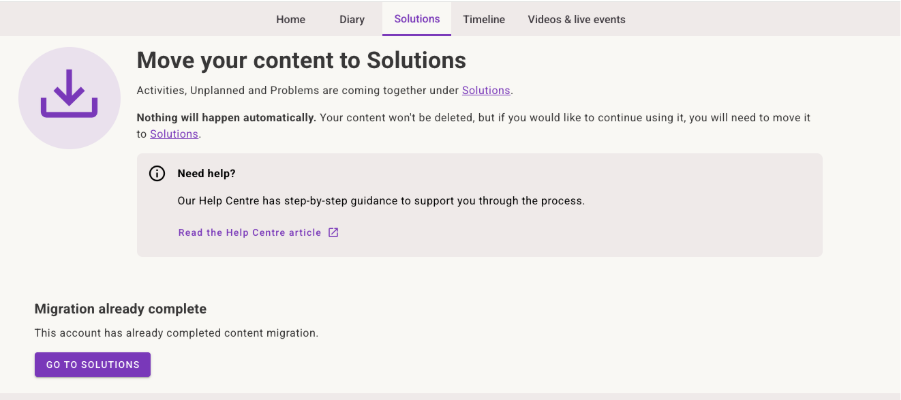
If you return to the migration tool after completing the migration, you’ll see a confirmation message and a Go to Solutions button instead of the option to move your content again.
Learn more
Learn more about Solutions and Solution Packs
Need help?
If you’d like some extra support, you can book time with a coach to talk through the changes and explore Solutions and the migration tool together.
Migration issues are uncommon, but if something doesn’t go as expected, our support team will investigate the issue and work to resolve it.
Was this article helpful?
That’s Great!
Thank you for your feedback
Sorry! We couldn't be helpful
Thank you for your feedback
Feedback sent
We appreciate your effort and will try to fix the article
Can't find what you're looking for?
Contact us